

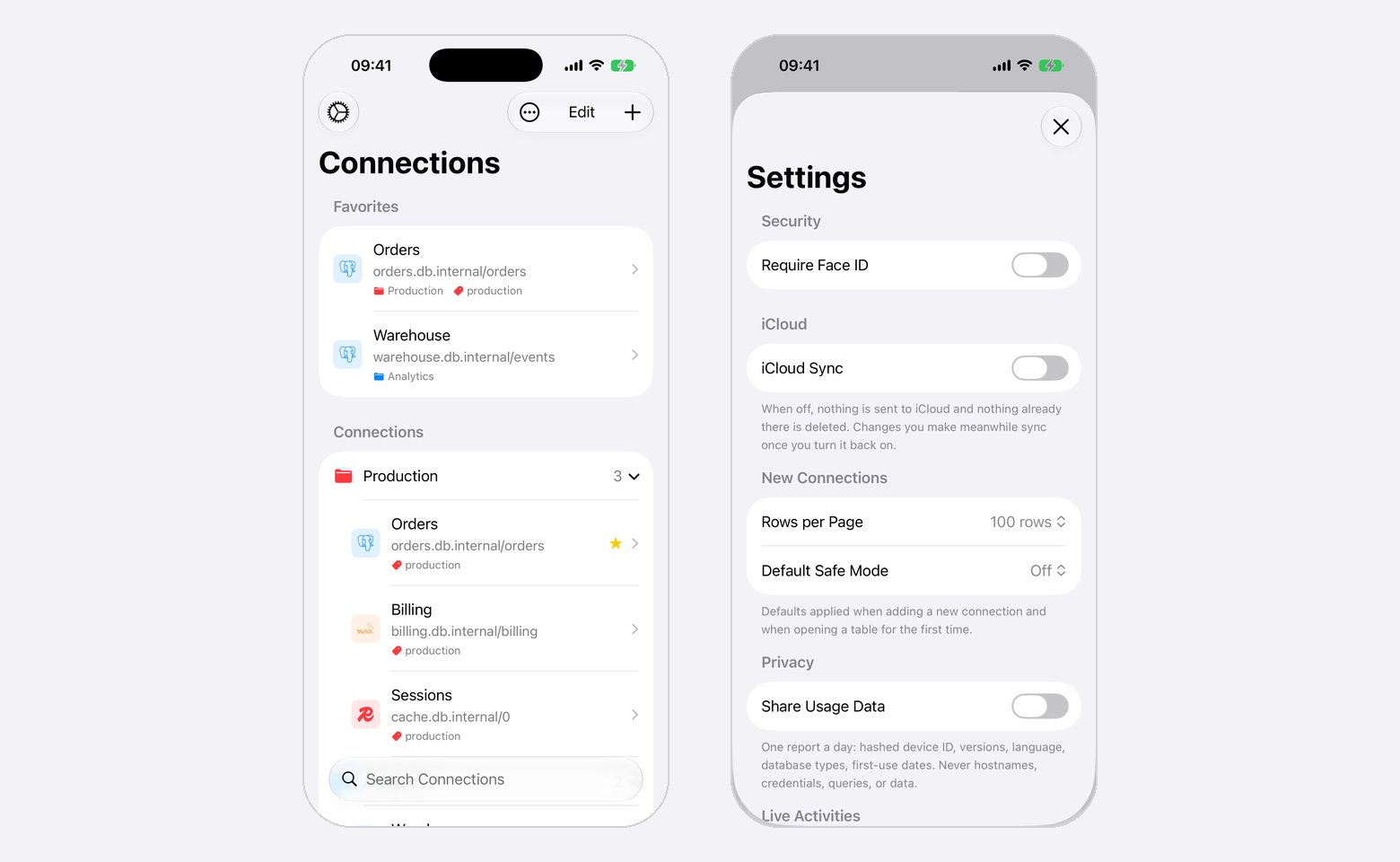
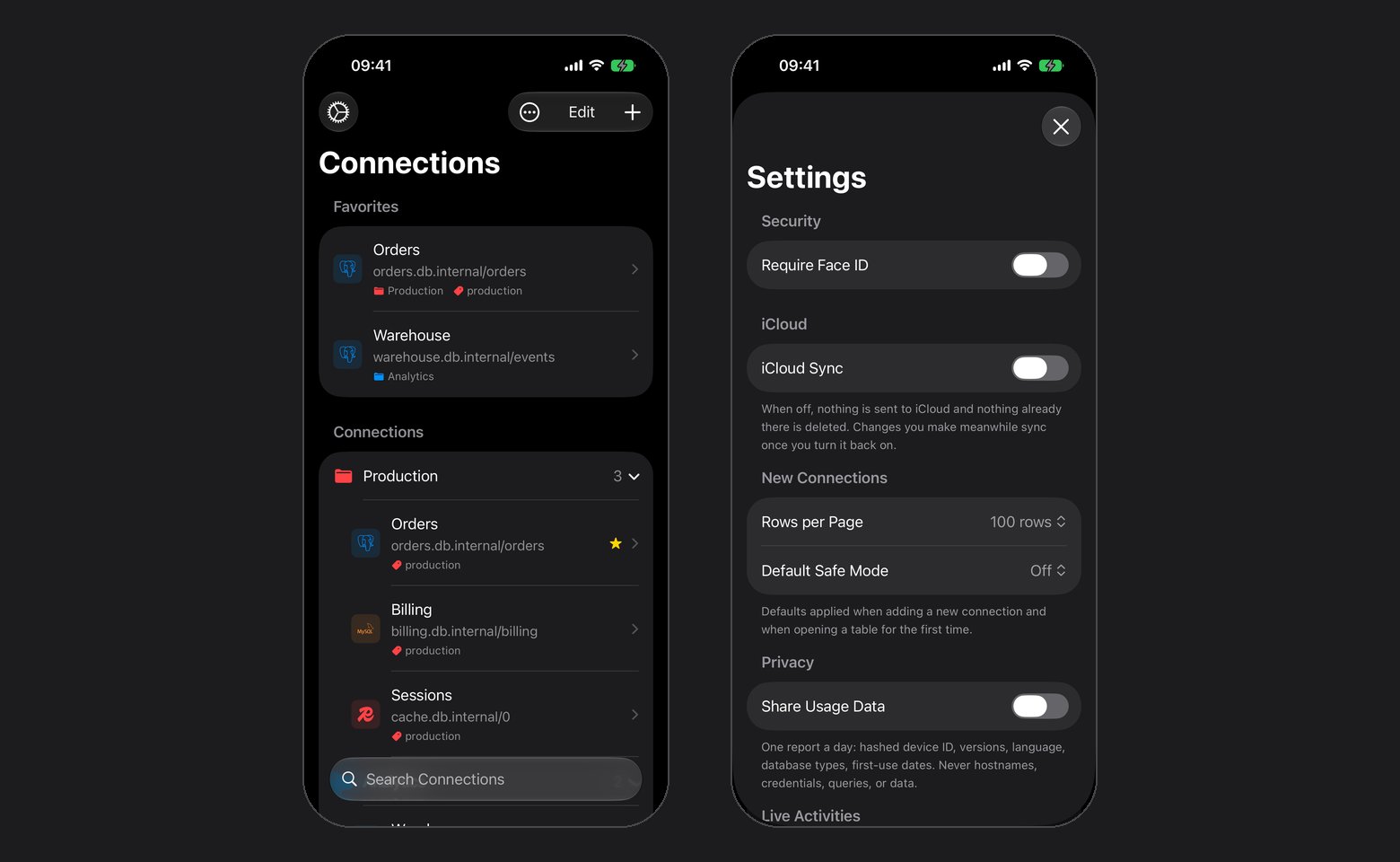
The connection list and Settings on iPhone
First launch
A welcome sheet lists what the app does. Continue leads to at most two questions, each asked once:
Both answers can change later, under Settings > iCloud and Settings > Privacy. After an update, a What’s New sheet lists what changed, once per version.
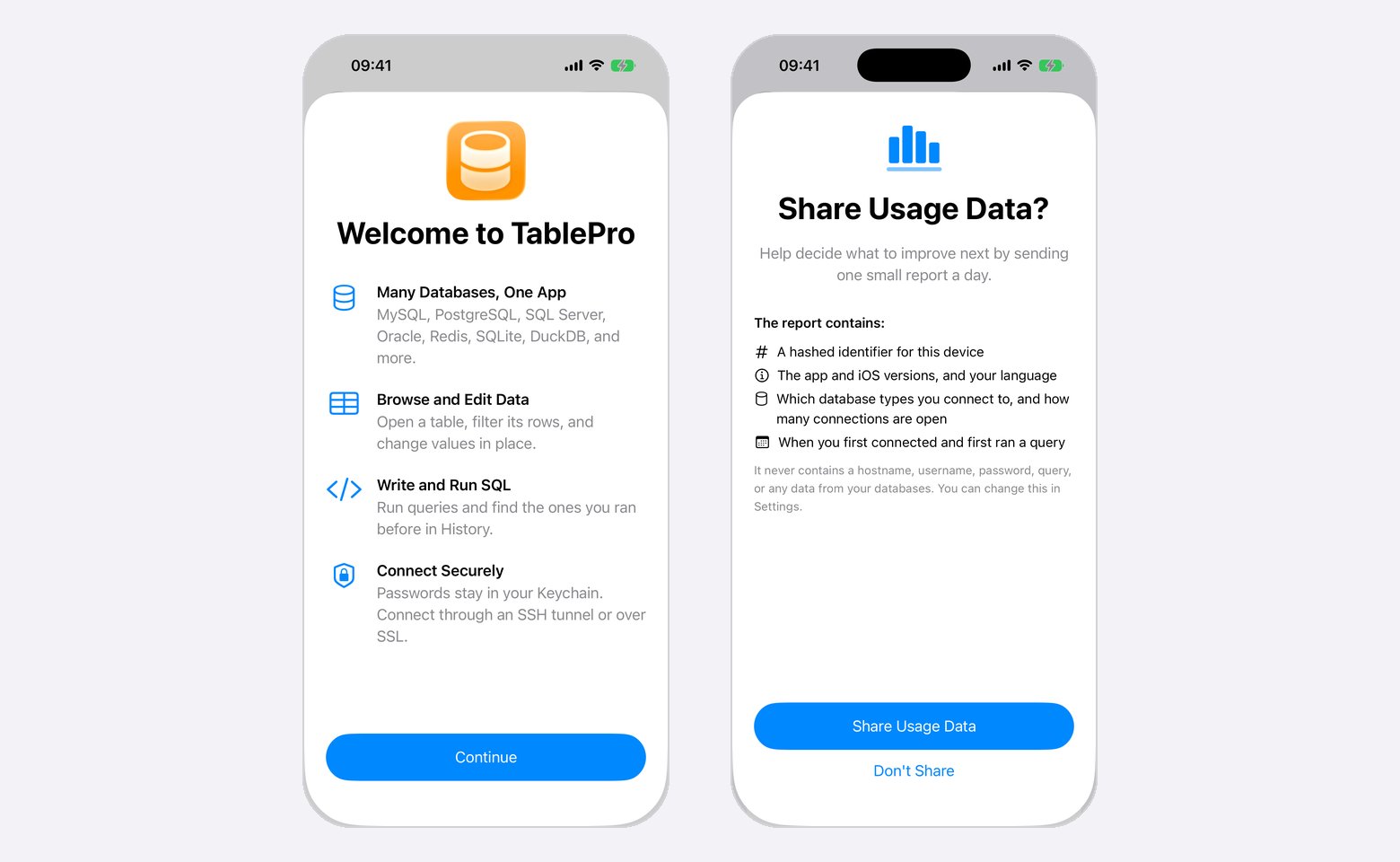
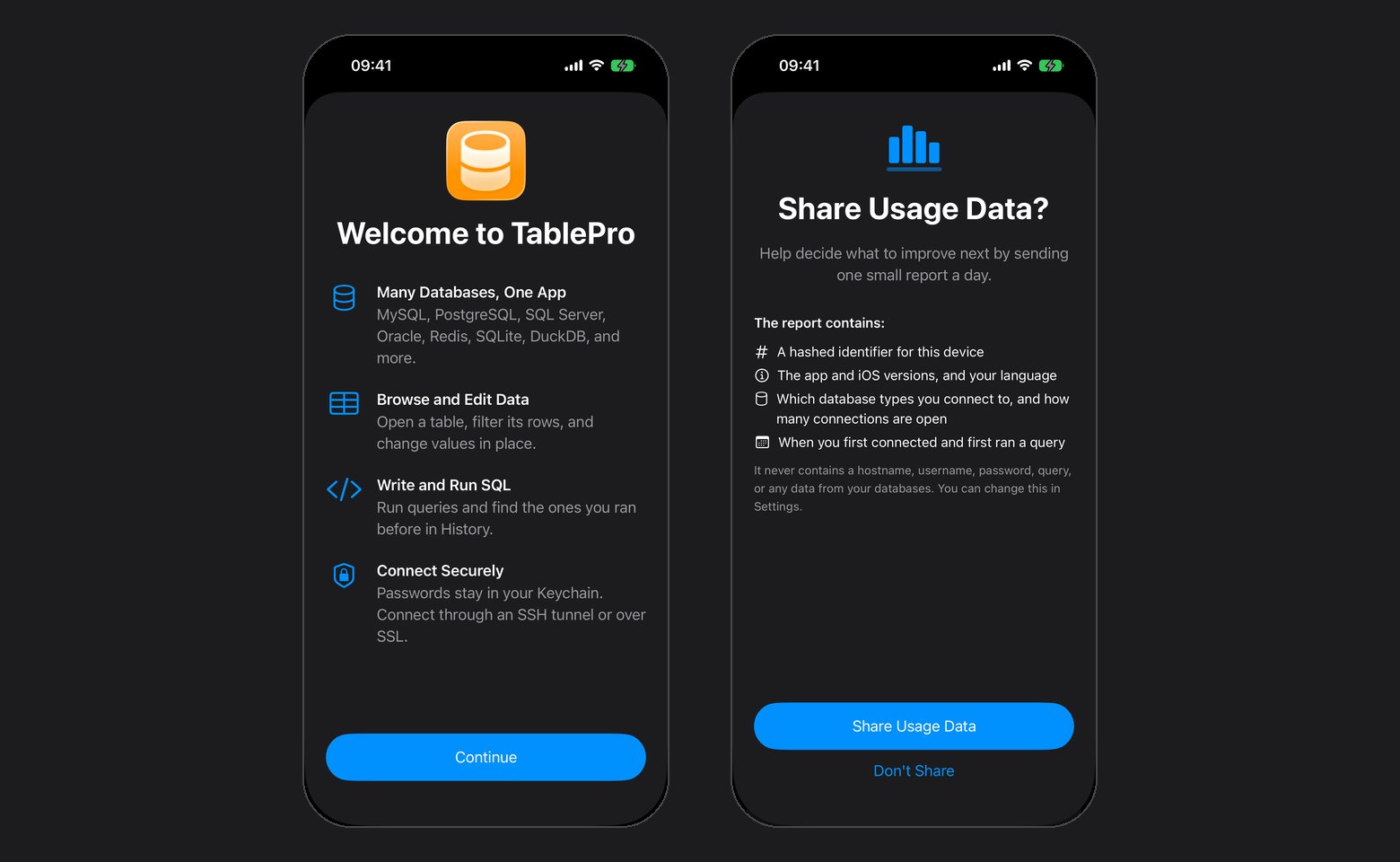
Swipe the sheet down to skip both questions
Supported databases
Every driver is compiled in, so there is no plugin system and nothing to install. The type picker offers these ten:Redshift is not in the picker, but the driver is present: a Redshift connection created on the Mac connects once it syncs over.
The connection list
Favorites come first, then Recent with the five connections opened last, then your groups, nested the way the Mac nests them. The More menu holds Sort By (Manual, Name, Database Type, Last Connected), New Group, Manage Tags, Open Sample Database, and import and export. Type a tag’s name in the search field to filter by it; with two tags or more chosen, Match All Tags appears in the More menu.
Duplicate copies the saved password, SSH secrets, client certificates and file access along with the settings. Recent and the sort order stay on the device.
A connection, group or tag form with unsaved changes stays open when swiped down, and Cancel asks before it discards them.
The sample database
Open Sample Database sits on the empty list and in the More menu. It opens Chinook, a SQLite database of a music store, at its Track table, with no server to set up. The sample stays on this device: it never syncs, exports or hands off to another device. To throw away your edits, touch and hold Chinook (Sample) and choose Reset Database.What syncs over
The same CloudKit container as the Mac. iCloud Sync is off on both until you turn it on: here during first launch or under Settings > iCloud. While it is off nothing leaves the device, and edits made in the meantime go up when you turn it back on, provided the device is still signed in to the same Apple Account. Sign in to a different Apple Account and sync starts over for that account: its connections come down, edits not yet sent go up to it, deletions not yet sent are dropped, and the other connections already on the device stay and go up the next time you edit them. Three record types cross: connections (host, port, SSH tunnel and SSL settings, color, safe mode level, favorite), groups with their nesting, and tags. SSH profiles, table favorites, saved queries, and app settings are skipped, and query history on the phone is only what you ran on the phone. Three things a connection depends on are per device and never sync:
Passwords are a separate opt-in, off by default, at Settings > iCloud > Sync Passwords. They ride iCloud Keychain and only new saves are affected, so re-save a password on the Mac to push it across. A private key saved on this device follows the same setting: with Sync Passwords on, iCloud Keychain copies the key to your other iPhones and iPads, which use it, and to your Mac, which does not. Pull down on the connection list to sync now; a background refresh runs about every 30 minutes.
A change that syncs in while a connection is open leaves the screen where it is. A change to how it connects, such as a new host, port, username, database, SSH tunnel or SSL mode, reconnects it once no row or form on it has unsaved changes. Saving a new password, SSH password, key passphrase, private key or certificate for an open connection reconnects it the same way. A connection deleted on another device shows Connection Deleted before returning to the list.
A database created with Create New Database, or copied in by picking it, stays with its connection through an app update and a restore from backup. A file that is gone is reported as unavailable, and so is a file connection synced from another iPhone or iPad; the connection never opens an empty database, or a file of the same name on this device, in its place.
What works
An open connection fills the screen and carries four sections: Tables, Query, History, Info. They sit in a tab bar on iPhone and in a sidebar on iPad.Cmd+1 through Cmd+4 switch between them on a keyboard, a toolbar menu switches database and schema when the engine has more than one, and Connections returns to the list.
Browsing
Search the table list by name. Page a table at 50, 100, 200, or 500 rows, jump to a page number, sort by a column, search text columns, and stack filters with AND or OR. A foreign key value previews the row it points at. Table Structure lists columns, indexes, and foreign keys, read only.Editing
Tap a row to open it full screen, page between rows, edit values, toggle one toNULL, and save. While you edit, Cancel takes the place of the back button and asks before it throws away a changed value, and so does Connections in another tab. Inserting and deleting rows, and truncating or dropping a table, are here too. Editing needs a primary key.
A new row starts with every column on DEFAULT, which leaves that column out of the INSERT so the database fills it in. The badge beside a field switches it between DEFAULT, NULL and a typed value, and NULL is offered on nullable columns only. Generated columns are never written, and an auto-increment key stays on DEFAULT until you type one.
A save, insert, delete, truncate or drop runs inside a read-write transaction. MySQL, MariaDB, PostgreSQL and Redshift report what their session is already holding, and a write there runs inside that rather than under a transaction of its own, so the rows wait for whoever opened it. A server that starts its sessions read-only is a different problem: see Server read-only is not Safe Mode. SQL typed into the Query section is yours and goes out as written.
Querying
The editor highlights SQL, runs a statement, and stops one mid-flight. Stop ends the result stream at once; on MySQL and Redis the statement keeps running on the server until it finishes. Results copy or export as JSON, CSV, or SQLINSERT.
A running query appears in a Live Activity on the lock screen and Dynamic Island, with the elapsed time and the row count so far. Settings > Live Activities > Hide Query replaces the SQL text there with “Running query”. The card clears when the query ends. Quitting the app mid-query leaves it behind, marked interrupted, until the next launch clears it.
What is missing
- Schema changes. Truncating and dropping a table is the whole list; creating or altering tables, columns, indexes, triggers, and views is Mac only.
- Inserting a row on Redis. Editing and deleting a key still work.
- AI. No chat, no inline suggestions, no MCP server.
Security
Turn on Face ID, Touch ID, or Optic ID under Settings > Security. A cold launch always asks; after that Auto-Lock relocks immediately or after 1, 5, 15, or 60 minutes idle, starting at 5. The lock covers open sheets and connections, and the app switcher shows a locked card instead of your data. Turning the lock off asks you to authenticate first. Each connection carries its own safe mode level, synced from the Mac and settable here. iOS has three: Off, Confirm Writes, and Read-Only, which refuses writes outright. Settings > New Connections sets the level a new connection starts at. SSH tunnels authenticate with a password or a private key, and an unknown host key prompts with its fingerprint first. A key pasted under Paste Key, or picked as a text file, is kept in the Keychain beside the connection’s passwords, never in the saved connection list. A key file that is not text is copied into the app and read from there. Setting Auth Method to Password, choosing Import File, or turning SSH Tunnel off deletes the saved key when you tap Save.Privacy
Share Usage Data under Settings > Privacy sends one small report a day: a hashed device identifier, the app and iOS versions, your language, the database types you use, and when you first connected and first ran a query. It is off unless you chose Share Usage Data on first launch, and it never carries a hostname, username, password, query, or row. Settings > About holds the version, What’s New, the privacy policy, and Acknowledgements for the open source libraries the app ships.Shortcuts and widgets
Three App Intents put the app in Shortcuts, the Share Sheet, and Siri: Open Connection, Add Row to Table, Add Rows to Table. See iOS Shortcuts for pickers, data formats, and limits. A Quick Connect home screen widget opens a saved connection directly,tablepro://connect/<uuid> deep links work as on the Mac, Handoff carries an open connection between devices, and a .tablepro file from Files or AirDrop imports connections.