> ## Documentation Index
> Fetch the complete documentation index at: https://ngquct-fix-failing-tests-on-main.mintlify.site/llms.txt
> Use this file to discover all available pages before exploring further.
# AWS IAM Authentication
> Connect to Amazon RDS and Aurora with IAM database authentication instead of a static password
Set up the AWS side first, or **Test Connection** fails against a user the database never created for IAM.
## On the AWS side
Enable IAM database authentication on the RDS instance or Aurora cluster. MySQL, MariaDB, and PostgreSQL all support it. Then create the database user:
```sql theme={null}
CREATE USER 'app_user' IDENTIFIED WITH AWSAuthenticationPlugin AS 'RDS';
```
```sql theme={null}
GRANT rds_iam TO "app_user";
```
A user is either password-authenticated or IAM-authenticated, never both. Connecting as a user that still has only a password fails.
## Import from AWS
Choose **File > Import > Import from AWS…** and the endpoints come from the AWS API instead of the console. The profile needs `rds:DescribeDBInstances` and `rds:DescribeDBClusters`, both in the `AmazonRDSReadOnlyAccess` policy.
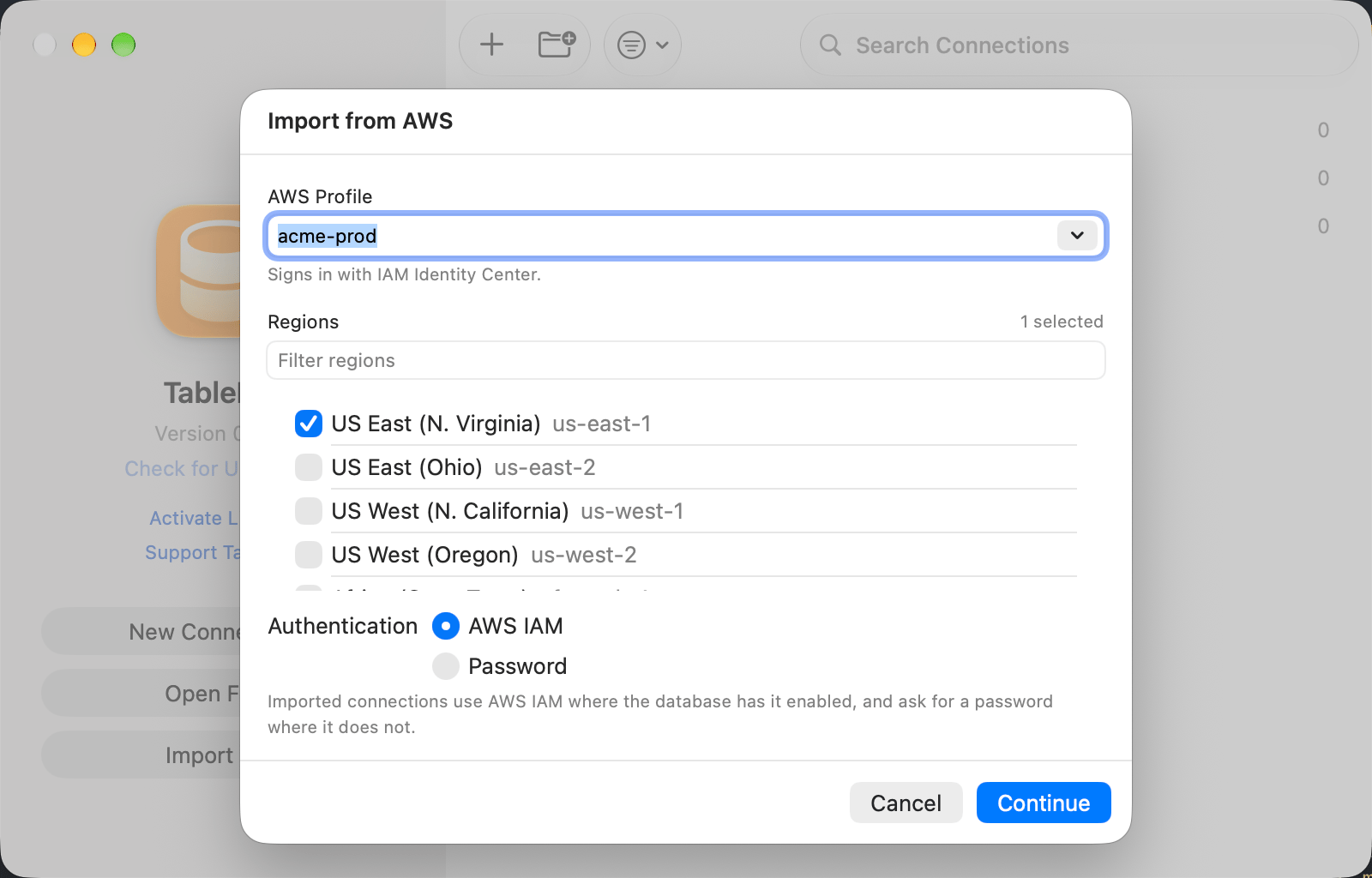
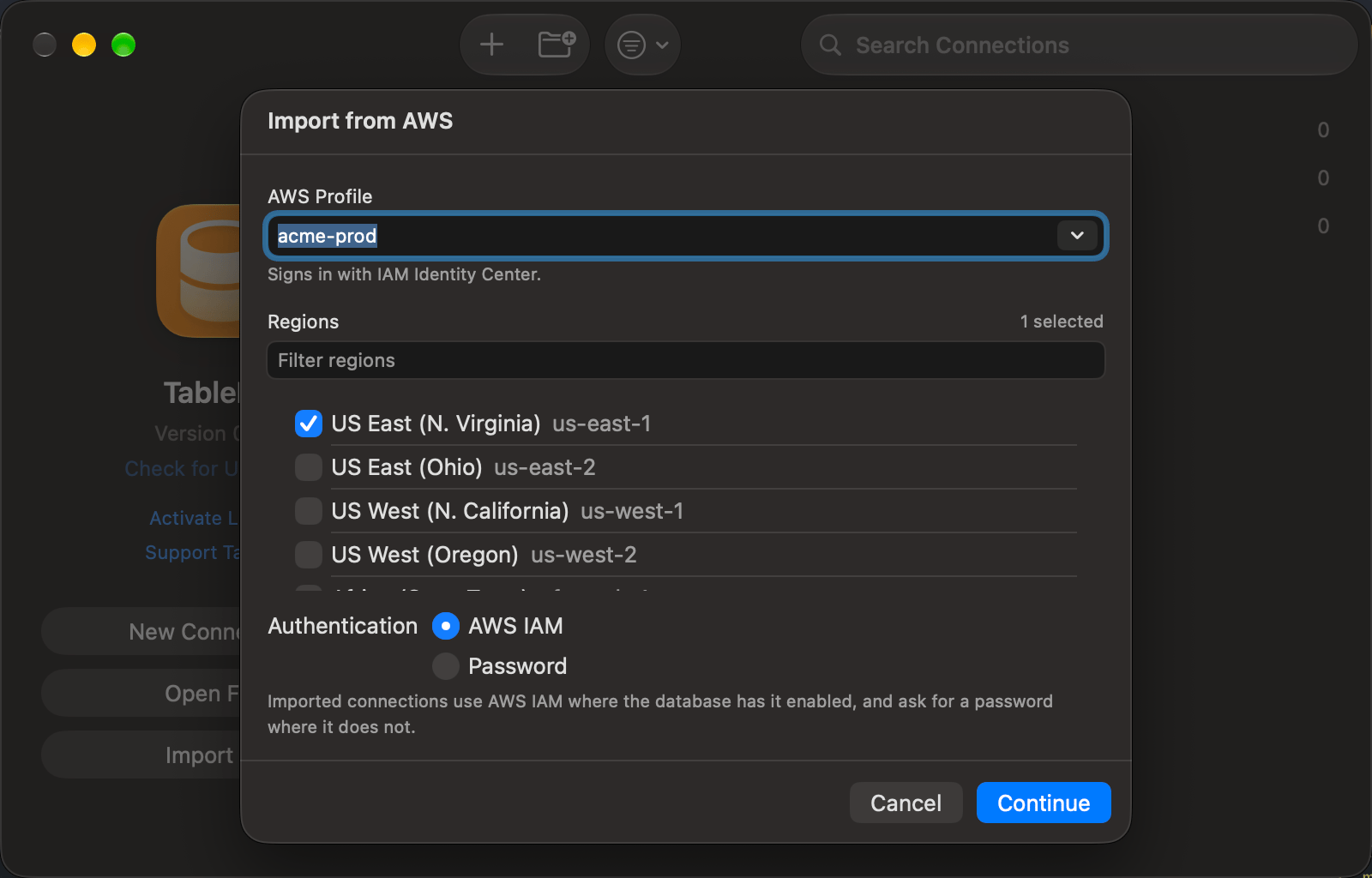 The list holds the profiles in `~/.aws/config` and `~/.aws/credentials`, and the line under it names how that one signs in. An expired IAM Identity Center session offers **Sign In** here.
AWS has no default region, so **Continue** stays dimmed until at least one is selected. The profile's own `region` starts selected.
Every instance and cluster arrives as a row with its endpoint, port, and engine. A cluster brings its writer endpoint, and its reader endpoint as a second row that starts deselected.
A row matching a saved connection on host and port is marked duplicate and starts deselected, with **As Copy**, **Replace**, and **Skip** on the row. **Username** stays empty, because the IAM database user is rarely the master user.
Imported connections carry the region and the profile, and take IAM authentication on every database that has it enabled. The rest ask for a password on the first connect.
A region that answers with an error keeps its own line and leaves the others running. Engines with no TablePro driver, and databases with no endpoint yet, are named at the top of the list and skipped.
## Setting up
In the connection form, set **Authentication** to one of the AWS IAM options. The **Password** field gives way to the AWS fields, and **Username** takes the IAM database user.
The list holds the profiles in `~/.aws/config` and `~/.aws/credentials`, and the line under it names how that one signs in. An expired IAM Identity Center session offers **Sign In** here.
AWS has no default region, so **Continue** stays dimmed until at least one is selected. The profile's own `region` starts selected.
Every instance and cluster arrives as a row with its endpoint, port, and engine. A cluster brings its writer endpoint, and its reader endpoint as a second row that starts deselected.
A row matching a saved connection on host and port is marked duplicate and starts deselected, with **As Copy**, **Replace**, and **Skip** on the row. **Username** stays empty, because the IAM database user is rarely the master user.
Imported connections carry the region and the profile, and take IAM authentication on every database that has it enabled. The rest ask for a password on the first connect.
A region that answers with an error keeps its own line and leaves the others running. Engines with no TablePro driver, and databases with no endpoint yet, are named at the top of the list and skipped.
## Setting up
In the connection form, set **Authentication** to one of the AWS IAM options. The **Password** field gives way to the AWS fields, and **Username** takes the IAM database user.
 | Option | Credentials come from |
| ------------------------ | ------------------------------------------------------------------------------------ |
| **AWS IAM (Access Key)** | An access key ID, secret access key, and optional session token typed into the form |
| **AWS IAM (Profile)** | A named profile in `~/.aws/credentials` and `~/.aws/config` |
| **AWS IAM (SSO)** | A profile backed by IAM Identity Center, using the token cache in `~/.aws/sso/cache` |
Pick **AWS IAM (Profile)** if you already use the AWS CLI here: it reads the same files the same way.
**AWS Region** is read from the endpoint when the hostname looks like `mydb.abc123.us-east-1.rds.amazonaws.com`. Fill it in for a CNAME or any other custom endpoint, or to override what was detected.
## Token lifetime
Each connect signs a fresh token, valid for 15 minutes and never written to disk; automatic reconnects sign another. Nothing to paste, rotate, or refresh.
IAM also requires encryption in transit, so an [SSL mode](/connections/ssl) of **Disabled** or **Preferred** is raised to **Required** for the connect.
## Profiles
**Profile Name** lists the profiles found in `~/.aws/config` and `~/.aws/credentials` and accepts a typed name. Blank means `default`. A profile resolves by what it declares, the way the AWS CLI resolves it, so **AWS IAM (Profile)** and **AWS IAM (SSO)** reach the same profiles:
* `role_arn` assume-role profiles, resolved through STS. Base credentials come from `source_profile`, chaining up to five deep and resolving that profile by its own kind, or from `credential_source = Environment`. `mfa_serial` is not supported.
* IAM Identity Center profiles, through `sso_session` or the older inline `sso_start_url`, using the token cache in `~/.aws/sso/cache`.
* Static `aws_access_key_id` / `aws_secret_access_key` pairs.
* `credential_process` commands, so a profile can be backed by 1Password or any other credential helper.
`web_identity_token_file` is not supported and says so rather than reporting the profile incomplete.
A connect that fails on an expired IAM Identity Center session offers the browser sign-in; `aws sso login --profile ` does the same from the shell.
## Tunnels and port forwards
RDS checks the token against its own hostname and port, so the endpoint it was signed for is what matters, not the address dialed.
A tunnel the app opens needs nothing extra: the token is signed for the **Host** and **Port** in the form, not the loopback address the driver gets.
A forward you run yourself leaves `127.0.0.1` in the form, which names no database. Set **RDS Endpoint** to the real one:
```text theme={null}
mydb.abc123.us-east-1.rds.amazonaws.com:5432
```
The port is optional, falling back to 5432 for PostgreSQL and 3306 for MySQL and MariaDB. The field also covers a CNAME or any alias AWS did not issue, and is honored only when **Host** is loopback or already the same hostname.
## Troubleshooting
### Could not determine an AWS region for "…"
The hostname is not a standard RDS endpoint. Fill in **AWS Region**.
### TablePro cannot sign an RDS token for "…"
The connection points at a port forward the app did not open. Fill in **RDS Endpoint** with the endpoint from the AWS console.
### PAM authentication failed
PostgreSQL reports this and MySQL reports `Access denied` when the token was signed for the wrong endpoint. Check **RDS Endpoint** against the console, including the port.
### Profile "…" was not found
The profile declares no credentials at all: no `role_arn`, no `sso_session` or `sso_start_url`, no static keys, and no `credential_process`. Check the name and the contents of `~/.aws/config` and `~/.aws/credentials`.
### AWS SSO Sign-In Required
The cached SSO session expired. Accept the prompt, or run `aws sso login --profile `.
## Other AWS services
The same **Authentication** options reach Amazon ElastiCache ([Redis](/databases/redis)) and Amazon Keyspaces ([Cassandra](/databases/cassandra)), each with fields of its own on those pages.
| Option | Credentials come from |
| ------------------------ | ------------------------------------------------------------------------------------ |
| **AWS IAM (Access Key)** | An access key ID, secret access key, and optional session token typed into the form |
| **AWS IAM (Profile)** | A named profile in `~/.aws/credentials` and `~/.aws/config` |
| **AWS IAM (SSO)** | A profile backed by IAM Identity Center, using the token cache in `~/.aws/sso/cache` |
Pick **AWS IAM (Profile)** if you already use the AWS CLI here: it reads the same files the same way.
**AWS Region** is read from the endpoint when the hostname looks like `mydb.abc123.us-east-1.rds.amazonaws.com`. Fill it in for a CNAME or any other custom endpoint, or to override what was detected.
## Token lifetime
Each connect signs a fresh token, valid for 15 minutes and never written to disk; automatic reconnects sign another. Nothing to paste, rotate, or refresh.
IAM also requires encryption in transit, so an [SSL mode](/connections/ssl) of **Disabled** or **Preferred** is raised to **Required** for the connect.
## Profiles
**Profile Name** lists the profiles found in `~/.aws/config` and `~/.aws/credentials` and accepts a typed name. Blank means `default`. A profile resolves by what it declares, the way the AWS CLI resolves it, so **AWS IAM (Profile)** and **AWS IAM (SSO)** reach the same profiles:
* `role_arn` assume-role profiles, resolved through STS. Base credentials come from `source_profile`, chaining up to five deep and resolving that profile by its own kind, or from `credential_source = Environment`. `mfa_serial` is not supported.
* IAM Identity Center profiles, through `sso_session` or the older inline `sso_start_url`, using the token cache in `~/.aws/sso/cache`.
* Static `aws_access_key_id` / `aws_secret_access_key` pairs.
* `credential_process` commands, so a profile can be backed by 1Password or any other credential helper.
`web_identity_token_file` is not supported and says so rather than reporting the profile incomplete.
A connect that fails on an expired IAM Identity Center session offers the browser sign-in; `aws sso login --profile ` does the same from the shell.
## Tunnels and port forwards
RDS checks the token against its own hostname and port, so the endpoint it was signed for is what matters, not the address dialed.
A tunnel the app opens needs nothing extra: the token is signed for the **Host** and **Port** in the form, not the loopback address the driver gets.
A forward you run yourself leaves `127.0.0.1` in the form, which names no database. Set **RDS Endpoint** to the real one:
```text theme={null}
mydb.abc123.us-east-1.rds.amazonaws.com:5432
```
The port is optional, falling back to 5432 for PostgreSQL and 3306 for MySQL and MariaDB. The field also covers a CNAME or any alias AWS did not issue, and is honored only when **Host** is loopback or already the same hostname.
## Troubleshooting
### Could not determine an AWS region for "…"
The hostname is not a standard RDS endpoint. Fill in **AWS Region**.
### TablePro cannot sign an RDS token for "…"
The connection points at a port forward the app did not open. Fill in **RDS Endpoint** with the endpoint from the AWS console.
### PAM authentication failed
PostgreSQL reports this and MySQL reports `Access denied` when the token was signed for the wrong endpoint. Check **RDS Endpoint** against the console, including the port.
### Profile "…" was not found
The profile declares no credentials at all: no `role_arn`, no `sso_session` or `sso_start_url`, no static keys, and no `credential_process`. Check the name and the contents of `~/.aws/config` and `~/.aws/credentials`.
### AWS SSO Sign-In Required
The cached SSO session expired. Accept the prompt, or run `aws sso login --profile `.
## Other AWS services
The same **Authentication** options reach Amazon ElastiCache ([Redis](/databases/redis)) and Amazon Keyspaces ([Cassandra](/databases/cassandra)), each with fields of its own on those pages.